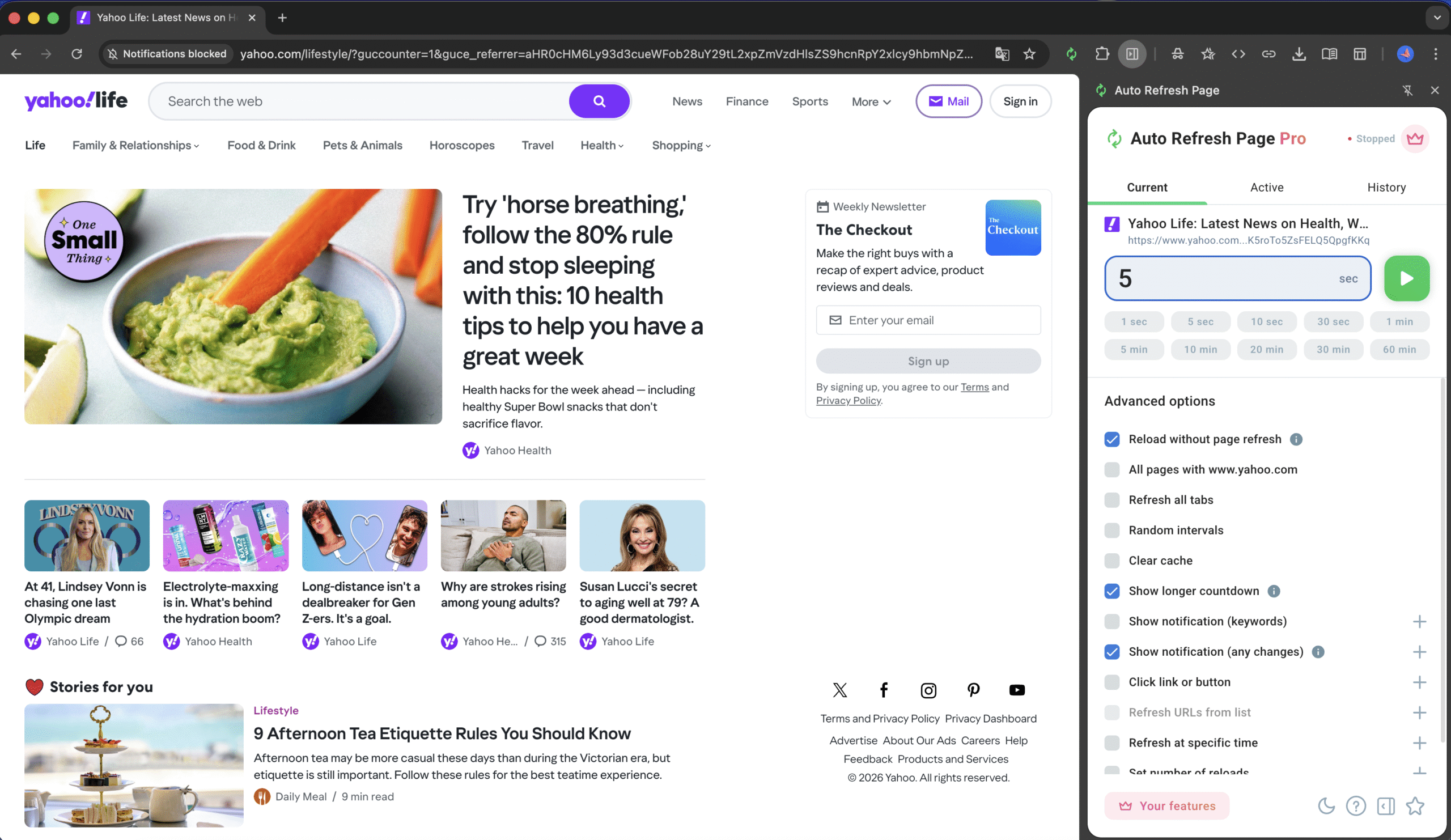
I still remember the day my sanity was on the verge of collapse. I was working as a data analyst, and our corporate portal had this lovely feature of timing out every 10 minutes. I had to manually refresh the page, click the ‘Stay Logged In’ button, and then navigate back to the report I was working on. It was like being trapped in some sort of browser Groundhog Day. I knew I needed a way to automate this process, and that’s when I discovered the auto refresh page extension.
The Problem: Manual Refreshing Madness
Manual refreshing wasn’t just a minor annoyance; it was a productivity killer. I found myself wasting hours each week just babysitting the portal, making sure I didn’t get logged out. And if I got distracted or had to attend a meeting, I’d come back to find that I’d been timed out, and all my work was lost. It was like we were engaged in some sort of bizarre battle – me vs. the browser.
The Discovery: Auto Refresh Page to the Rescue
That’s when I stumbled upon the auto refresh page extension. Available on the Chrome Web Store, Microsoft Edge, and Firefox Add-on, this little tool promised to automate the refreshing process for me. I was skeptical at first, but desperate for a solution, I decided to give it a try. One of its most useful features is the Auto Clicker, which can automatically click on a button for you, like that pesky ‘Stay Logged In’ button.
The Implementation: Setting Up Auto Refresh Page
Setting up the auto refresh page extension was a breeze. I simply installed it, configured the refresh intervals, and let it do its magic. I also enabled the Notifications feature, so I’d be alerted whenever the page was refreshed. Another useful feature is the Random Intervals option, which helps avoid detection by websites that don’t like auto-refreshing. With the Refresh All Tabs feature, I could refresh multiple pages at once, making it easier to monitor multiple reports. The Refresh URLs from a List feature also allowed me to specify which pages to refresh, giving me more control. Occasionally, I’d use the Longer Countdown option to give myself more time to react before a page refreshed. And for more complex tasks, I could use the Execute Custom JavaScript feature to run custom scripts.
The Result: Regaining My Sanity
With the auto refresh page extension, I was able to reclaim my time and focus on more important tasks. No more manual refreshing, no more timed-out sessions. It was liberating, to say the least. The auto refresh page extension became my trusted ally in the battle against browser-induced frustration. I could finally concentrate on my work without the constant distraction of manual refreshing.
- The auto refresh page extension is easy to use and configure.
- It saves time by automating the refreshing process.
- It reduces frustration caused by manual refreshing and timed-out sessions.
In conclusion, if you’re like me and tired of the endless battle against manual refreshing, I highly recommend giving the auto refresh page extension a try. Trust me, your sanity will thank you.